
Fix IPTV Buffering: We’ve all been there: it’s the 85th minute of an intense derby, the counter-attack starts, and the screen just freezes on a spinning circle. You restart the app, maybe scream at your TV, and by the time the feed comes back, the score has changed.
The immediate reaction is almost always: “This service is garbage.”
Sometimes it is. But after troubleshooting streaming setups across Firesticks, Android boxes, and Nvidia Shields for years, I’ve found that the service itself is only guilty about half the time. Most drops happen right inside your living room—or at the exchange box down your street.

Here is a raw, no-fluff walkthrough of what actually causes your stream to stutter, and how to fix it step by step.
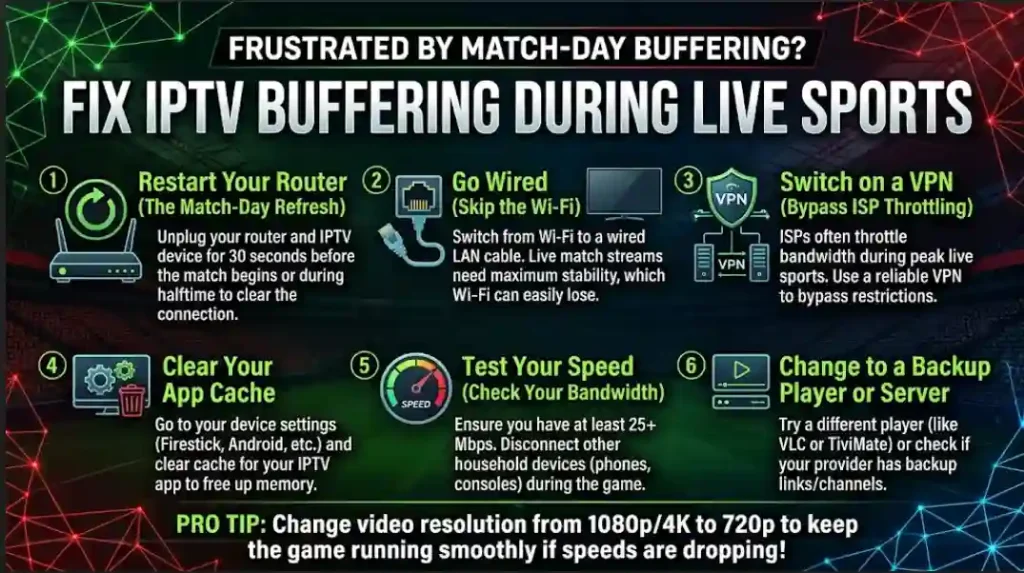
1. Ditch Wi-Fi (Seriously, Just Run the Cable)
If your streaming box connects over Wi-Fi, this is your primary suspect.
That isn’t always server overload. Major Internet Service Providers use Deep Packet Inspection (DPI). When their automated systems detect thousands of sustained video packet streams to overseas CDNs during high-traffic hours, they deliberately choke that specific traffic to save local bandwidth.
How to test this:
- Download a reliable, fast VPN on your phone or streaming device.
- Turn the VPN on (choose a server close to your real location to keep latency low).
- Relaunch your stream.
If the freezing vanishes instantly while behind an encrypted tunnel, your ISP was throttling your route.
3. Clear Out App “Junk” and Restart Fresh
Streaming apps—especially TiviMate, IPTV Smarters, or XCIPTV—are constantly caching chunks of video into your TV box’s storage.
Most budget Android boxes or Firesticks only have 8 GB of internal storage, and less than 1.5 GB is usually free. Once that fills up, the app runs out of RAM and virtual memory to unpack the incoming video stream, which leads to audio-video desync and crashes.
- Go to Settings > Apps > Manage Installed Apps.
- Pick your player and hit Clear Cache (be careful not to hit “Clear Data” unless you want to re-type your login details).
- While you’re at it, unplug your TV or box from the wall, wait 30 seconds, and plug it back in. A full power-cycle cleans temporary memory leaks that standard sleep mode ignores.
4. Tweak Two Critical Settings Inside Your Player
Most people leave their player on factory default settings. Making just these two tweaks inside your app can make a night-and-day difference:
- Buffer Size (Playback Buffer): By default, many players set buffer to “None” or 0 seconds for instant channel surfing. Go to your app’s playback settings and increase the buffer to 3 seconds or “Large”. It means changing channels takes an extra second, but it gives your connection breathing room against micro-drops.
- Hardware vs. Software Decoder: If your video stutters while the audio keeps playing, your device’s built-in GPU isn’t playing nice with the video codec. Switch the video decoder from Hardware (HW) to Software (SW)—or vice versa—in the player menu to see which runs smoother.
5. Change Your DNS Servers (Takes 2 Minutes)
Your ISP routes every single web request through their own DNS servers. Often, these servers are slow, overloaded, or actively blocking access to specific streaming hosts.
Switching to a neutral public DNS makes domain lookups instant and bypasses DNS-level filtering:
- Cloudflare:
1.1.1.1and1.0.0.1 - Google:
8.8.8.8and8.8.4.4
You can change this either on your router so every home device benefits, or directly inside your Android/Firestick network settings under “Advanced”.
What If Nothing Works?
If you’ve hardwired your connection, tested with a clean VPN, cleared your storage, and tuned your buffer, but the feed still loops or buffers every 30 seconds…
Then the verdict is simple: you’re on an oversold server.
Budget setups run on cheap VPS hosting with hundreds of users fighting for the same 1 Gbps port. When everyone tunes in for a big game, the server simply runs out of outbound bandwidth.
If that’s where you’re stuck, stop tweaking settings. It’s time to move to a provider that runs dedicated, load-balanced streams designed to handle real traffic without collapsing under pressure.
Still Having Playback Issues? Get Direct Support
Sometimes the problem isn’t your home network—it’s server maintenance, an outdated channel link, or an unannounced DNS update on the provider’s end.
Before giving up on your setup, reach out to our technical support team directly. Share your device details and the channels giving you trouble, and we will diagnose the stream or switch your connection route:
- WhatsApp Support: Contact Us on WhatsApp
Frequently Asked Questions (FAQ)
What internet speed do I actually need to fix IPTV buffering?
For smooth Full HD (1080p) live streaming, a steady download speed of 25 Mbps is generally sufficient. If you are watching 4K UHD broadcasts or have multiple devices sharing the network, aim for at least 50 to 100 Mbps. Remember that latency and jitter matter far more than top speed—a stable 30 Mbps Ethernet line will always perform better than a fluctuating 200 Mbps Wi-Fi connection.
Why does my stream work fine all day but buffer during live football matches?
This usually boils down to two reasons:
- Server Overcrowding: Low-tier providers overload their distribution servers. When millions of viewers connect simultaneously for big matches, available outbound bandwidth drops.
- ISP Throttling: Many internet providers deliberately restrict specific streaming protocols during peak weekend hours to prevent neighborhood bandwidth saturation. Testing with an active VPN quickly reveals if your ISP is the culprit.
Is increasing the player buffer always the right move?
Increasing your buffer size (e.g., from 0s to 3–5 seconds) is the quickest way to absorb minor packet loss and micro-disconnects. The only trade-off is a slight delay: channel changes will take 1 to 2 seconds longer, and your stream will run a few seconds behind real-time. For a stutter-free picture, that trade-off is almost always worth it.