Best Streaming Devices; A slow TV menu or a confusing mix of subscriptions can make watching a show harder than it should be. A streaming device can give your TV a different interface and access to more apps. IPTV is television delivered over internet protocol networks rather than by traditional broadcast or cable delivery. A device purchase and a content subscription are separate decisions. Current IPTV plan prices and inclusions need to be checked before purchase, since they can change. Your budget should account for the hardware and any recurring service charges, not just the price on a device listing.
That distinction matters in a smart home, where a convenient interface does not necessarily include the shows or channels you want. Think about how the household watches, which TV features matter, and what ongoing cost feels manageable. Compare the hardware against the TV first, then consider services separately. Set up the choice as two linked decisions, first which device fits the TV and household, then which service fits the budget.
Key Takeaways
- Use an external device when the TV’s built-in menu is slow or limited.
- Choose a streaming stick for compact travel or a streaming box for ports and Ethernet.
- Match video and audio features to the TV and sound system you own.
- Compare a device’s one-time price separately from recurring service charges.
- Check current IPTV offers and terms before subscribing.
Why Add a Streaming Device to a Smart TV?
A separate streamer is most useful when the TV’s own software is the part getting in the way. An external streaming platform can bypass a slow built-in menu and offer another route to streaming services. That software change can matter more than replacing a TV that still has a good picture.
Many smart TVs released from the mid-to-late 2010s include a platform for downloading apps. The TV can still feel sluggish, and continued app support depends on its manufacturer. An external device may restore useful app access without replacing the screen. It can also add streaming apps to an older TV with no built-in streaming platform.
An external streamer is worth considering when the TV’s own software is slow, outdated, or difficult to use.
Three signs suggest an external device could help:
- Apps take too long to load or respond.
- The TV no longer receives useful app updates.
- The built-in menu is difficult for household members to navigate.
Adding another device does create another interface and remote to manage. You may not gain much if your TV responds quickly and already offers the apps and picture features your household needs. In that case, a new streamer could add cost without solving a real problem.
For older TVs, an external platform can provide a practical way to reach apps that the screen cannot run on its own. The best streaming devices for TV are the ones that fix a specific shortcoming, rather than add features you will rarely use. Move from the reason to add one to the practical choice between a stick and a box.
Should You Choose a Streaming Stick or a Box?
A stick disappears behind the screen, while a box gives you more room for ports and a wired connection. A streaming stick fits a compact setup, while a streaming box usually suits a fixed location with more connection needs. Placement and power can decide which form works in your home.
Do not assume every stick can draw power from the TV’s USB port. Some models can use USB power, but others need a wall outlet. Check the exact hardware requirements before you plan around an outlet-free installation.
| Form | Connection and power | Practical fit |
| Streaming stick | HDMI; USB or wall power, model dependent | Compact placement; easy to pack for travel |
| Streaming box | HDMI and generally a wall outlet | Fixed setup; often includes Ethernet |
| Built-in TV platform | No extra HDMI device or power supply | No added hardware; may feel sluggish |
A box can be useful when Wi-Fi is unreliable. Ethernet offers a wired route to the network, which can help when you plan to stream high-bitrate 4K video. It also leaves room for connections a small stick may not offer.
When a compact HDMI stick makes sense
A stick is a good fit when you want a small device that plugs into HDMI and stays out of sight. Its compact size also makes it easier to pack than a box when you travel. Still, check whether your model needs wall power before choosing where to place it.
When a set-top box is worth the extra space
A box makes sense when you want Ethernet, more ports, or a stable setup beside the TV. The built-in TV platform avoids another device entirely, but it may not provide the speed or app support you need. Once the physical setup fits, check whether the TV and audio system can use the picture and sound formats on offer.
- Choose a stick for compact placement and easier travel.
- Choose a box when Ethernet or extra ports matter.
- Keep the built-in platform if it already works well.
Which Picture and Audio Features Matter?
A device cannot create the full benefit of 4K or Dolby Atmos if the rest of the viewing setup does not support it. HD has lower resolution than 4K, while 4K can show more detail on a compatible TV. Compatibility across the whole setup matters more than a feature name on a box.
HDR formats, including Dolby Vision, affect the picture only when the TV and the content support them. A 4K streamer connected to an HD-only TV will not turn that TV into a 4K screen. The format is useful only when the device, television, and video all support it.
Dolby Atmos is an audio format, not a picture feature. It matters when the program includes Atmos sound and your soundbar or receiver can play it. A TV’s built-in speakers may not make that format a reason to pay more.
Check the specifications for your television and audio equipment before choosing a device. Do not pay extra for a format your current setup cannot use. That keeps the hardware choice tied to actual picture quality and sound, rather than a list of supported labels.
An older HD-only TV is a clear case for a basic HD streamer if you do not plan to upgrade. If a 4K TV or compatible sound system is coming soon, broader format support may be worth the added cost. Use those compatibility limits to narrow the shortlist before comparing particular models.
Which Best Streaming Devices Fit Your Budget and TV?
A useful shortlist starts with how you watch, not with a single universal winner. The best streaming device for you depends on your TV, preferred interface, and need for extra hardware features. Start with your use case, then compare price and app support.
This best streaming device 2026 buying decision includes older models that remain options, not only newly released products. The ten choices below cover different needs, so they are not equally suitable for every household. These top 10 streaming devices are grouped by the reason you might choose them.
Google TV Streamer and Roku sticks for everyday viewing
The Google TV Streamer suits viewers who want a streaming interface that brings shows from different services together. Google replaced its Chromecast product line with the Google TV Streamer in September 2024. The lineup has no HD model, so it may be more device than you need for an older HD-only TV.
The Roku Streaming Stick Plus offers a compact choice for everyday 4K viewing. Skip it if you specifically want Dolby Vision support. The Roku Streaming Stick is the simpler HD option for a secondary TV or a screen that does not need 4K.
Fire TV and Roku choices for a tighter budget
The Amazon Fire TV Stick HD is a lower-cost way to add apps to an HD television. Its remote controls TV power and volume, which can reduce remote clutter. Consider a different option if your screen needs 4K resolution.
Roku sticks provide compact hardware for viewers who value a straightforward interface. The right model depends on the TV’s resolution and the features you actually plan to use. For a tighter budget, compare the device cost with any services you expect to keep paying for.
Roku Ultra and Apple TV 4K for premium setups
The Roku Ultra 2024 fits a fixed setup where you want a streaming box rather than a stick. It is a stronger fit when you value a dedicated box, but unnecessary if a compact streamer meets your needs.
Apple TV 4K is a premium choice for households already using Apple devices and services. It is not the natural budget pick if you mainly need basic app access. Choose it for the overall platform fit, not just the 4K label.
NVIDIA Shield, Xbox, Fire TV Cube, and Roku Streambar for specific needs
The NVIDIA Shield Android TV Pro is the gaming-focused pick, with GeForce Now cloud gaming support. Skip it if you only need a basic streaming interface. The Xbox Series X is a console that also streams through major apps, including Apple TV+ and Disney+, and plays 4K Blu-ray discs.
Fire TV Cube adds hands-free Alexa control of a TV, which can suit a voice-first setup. Roku Streambar combines 4K streaming with a Bluetooth speaker, useful when you want to add sound without choosing separate hardware. Both make less sense if you do not need their specific extras.
These devices cover different goals, from basic app access to gaming and improved sound. Use the comparison chart for the listed prices and the key model differences.
How Do Streaming Devices Compare on Price and Features?
Among these five picks, the listed hardware prices run from $30 to $149, before any service subscription. The one-time price covers the device, not the apps or IPTV service you may use. Prices can change, and this is not a monthly service-price chart.
The streaming devices comparison chart focuses on five models with different video limits and purchase caveats. A lower price may be enough for an HD screen, while 4K TVs call for compatible hardware. Check your display needs before paying for features that will not show a benefit.
| Model | Listed device price | Maximum video capability | Purchase caveat |
| Google TV Streamer | $100 | 4K | HDMI cable sold separately |
| Roku Streaming Stick Plus | $40 | Up to 4K with HDR | No Dolby Vision or built-in Wi-Fi extender |
| Amazon Fire TV Stick HD | $35; often $25 or less on sale | 1080p at 60 fps | Remote controls TV power and volume |
| Roku Streaming Stick | $30 | HD only | Not a 4K option |
| Apple TV 4K, 32GB | $129 | 4K with Dolby Vision | 32GB configuration |
| Apple TV 4K, 128GB | $149 | 4K with Dolby Vision | Adds Ethernet and a Thread-enabled home hub |
The Fire Stick HD can be a practical buy when 1080p is enough, especially at its common sale price. The Roku Stick Plus costs more and supports 4K with HDR, but it lacks Dolby Vision. The standard Roku Stick is HD only.
The Google TV Streamer supports 4K and includes an Ethernet port, though you need to buy an HDMI cable separately. Apple TV 4K supports Dolby Vision and Dolby Atmos in both listed configurations. The 128GB model adds Ethernet and a Thread-enabled home hub.
Budget for the hardware and any monthly content costs as separate amounts. Separate the one-time device cost from the recurring bill when deciding whether an IPTV plan fits.
How Should You Compare IPTV Plans and Prices?
The device price is only one part of the amount you may pay to watch. An IPTV service can add a recurring charge, and that charge is separate from the hardware. Compare the full bill, not only a monthly figure shown in an offer.
No specific IPTV plan price or plan inclusions are confirmed here. Current charges and terms depend on the offer shown by the provider. Check www.iptvwino.store/pricing for current offers and terms, then review the exact plan before paying.
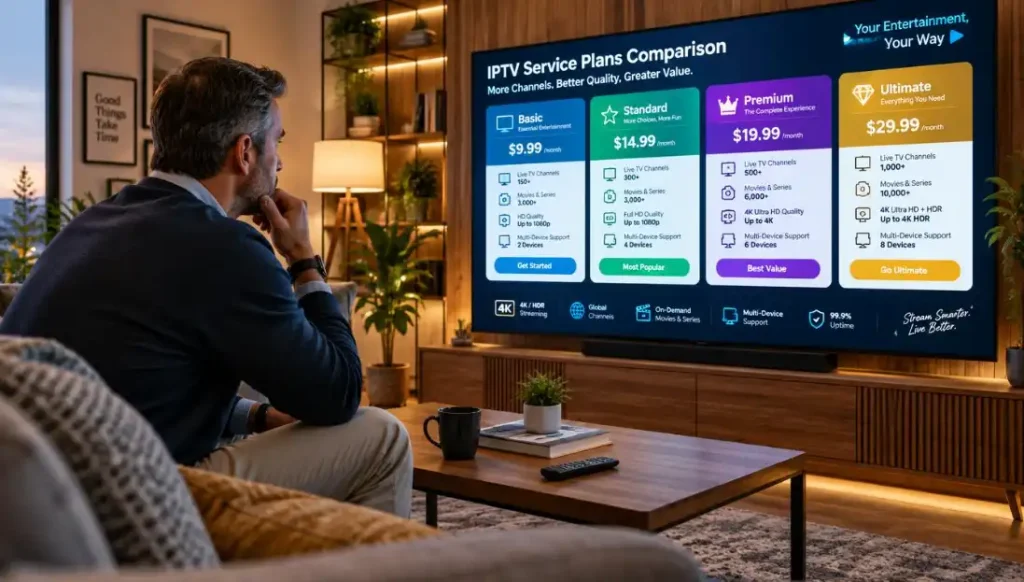
Compare each offer using the same details. Check its billing period and total charge, along with the channels and apps included. Look for the number of simultaneous streams and the devices the service supports.
Read the trial or refund terms, if offered, and the cancellation rules. Those details affect what you pay if the service does not fit. Do not assume a plan comes with a streamer, or that a device price includes an IPTV subscription.
A low monthly price may not represent good value if your preferred channels or the screens you use are excluded. Consider whether the service covers the household’s viewing needs before comparing headline prices. The cost only makes sense beside the included content and terms.
Write down the full charge and billing interval so you can compare offers without overlooking a longer payment period. Services can differ in what they include and which devices they support. With the recurring-cost questions clear, check what free and live viewing options can actually provide.
Which Free and Live-TV Options Can You Actually Get?
Free streaming is real, but “free” does not mean every channel or every show is included. FAST means free, ad-supported television, where ads help fund the programming. There is no device that guarantees all channels free.
Roku’s Live TV and Featured Free sections include free live and on-demand video. The Roku Channel offers thousands of series, films, Roku Originals, and live channels. A box does not itself unlock every channel or subscription catalog.
Fire TV supports major services such as Netflix, Hulu, Max, YouTube, Sling, YouTube TV, and Fubo. Their availability does not mean a device includes those services for free. Access can depend on the app, your location, and whether you have a subscription.
A search for the “best streaming box with all channels free” has a direct answer: no box provides every channel at no cost. Free catalogs vary, and live-TV services may charge a subscription. Check what each app offers in your area before expecting a particular station or show.
Common ways to watch include:
- FAST apps with free, ad-supported shows and live channels.
- Paid streaming subscriptions for specific shows, movies, or networks.
- Live-TV services that carry channels through a paid plan.
Local broadcast reception is another option to investigate. An antenna may receive local stations, depending on your location and signal conditions. It is separate from streaming apps and does not guarantee the same channel lineup everywhere.
Compare free apps with paid services based on the programs you actually watch. The best streaming box with all channels free does not exist, but a mix of FAST, subscriptions, and local reception may meet your needs. Readers who rely on voice assistants or connected home devices should compare platform support next.
Which Streaming Device Fits Your Smart-Home Ecosystem?
A voice remote is most useful when it works with the assistant and home devices you already rely on. A familiar smart home platform can make searches and simple controls easier. Choose based on the devices and assistants already in your household.
Voice control does not guarantee that a device will understand every complex request. It can help with searches or common home actions, but app and platform support still matter. Roku works across several major ecosystems, while other devices may fit more naturally into one.
Choose a platform that matches the devices you already use
Staying with Google, Apple, or Amazon can reduce setup friction if your household already uses that platform. Roku Streaming Stick Plus and Roku Ultra work with Roku Smart Home, Alexa, Apple HomeKit, and Google Home. The google streamer is a natural fit for people who use Google Home.
| Device | Compatible assistant or home platform | Specific control feature |
| Google TV Streamer | Google Home, Google Assistant | On-screen home panel for compatible devices |
| Roku Streaming Stick Plus and Roku Ultra | Roku Smart Home, Alexa, Apple HomeKit, Google Home | Works across four named platforms |
| Apple TV 4K | Apple HomeKit | 128GB model includes Thread radio and home hub |
| Amazon Fire TV Stick HD | Alexa | Alexa voice support |
| NVIDIA Shield Android TV Pro | Google Assistant, Google Home, Alexa | Supports three named assistants or platforms |
Check what control works while you watch
The Google TV Streamer includes a TV smart-home panel for compatible lights, temperatures, and camera feeds. You can assign its remote’s star button to open that panel. Google Assistant and Amazon Fire devices can also make voice searches and selected home actions more direct.
Think about what you need to control while watching. A Roku remote or an assistant may help you open an app or adjust compatible devices. Test the exact actions you expect, rather than assuming every voice command will work. After platform fit, consider whether gaming, travel, or a particular app library changes the choice.
Which Devices Suit Gaming, Travel, and Third-Party Apps?
A gaming setup, hotel stay, or niche app can change which hardware matters most. The NVIDIA Shield Android TV Pro suits people who want gaming and local-media connections. Special needs can justify extra hardware, while simple viewing may not.
The Shield has a Tegra X1+ processor, 3GB of RAM, 16GB of storage, gigabit Ethernet, two USB-C ports, and a microSD card slot. It streams native 4K and can upscale 720p and 1080p video to 4K. It supports GeForce Now and games from Google Play.
Those ports and services make the Shield a fit for gaming and local media. It is more hardware than you need if you only open a few video apps. Check whether its gaming features and storage options matter in your setup.
Xbox Series X may suit someone who wants a game console that also handles streaming. It supports major streaming apps and plays 4K Blu-ray discs. It is a console first, so it is not a small replacement for a streaming stick.
A streaming stick is easier to pack for travel than a box. It can be convenient for a hotel stay, though you still need a screen, power, and a usable network. Do not assume a hotel network will work with every streaming service or sign-in flow.
For the search “best streaming devices for 3rd party apps,” check the official app store and the exact app’s device support before buying. App availability depends on the platform and provider. Do not assume every device supports every third-party app or sideloading.
Confirm app availability directly when a less common service is central to your decision. That check can prevent buying hardware that cannot run the app you need. Before ordering, verify the connections, app support, and service terms that apply to the exact setup.
What Should You Check Before Buying?
A quick compatibility check can prevent a device from arriving before you discover it cannot connect as planned. Confirm its HDMI connection, power needs, and network options against the TV location. A few checks before checkout can prevent avoidable setup problems.
Check five points before paying for hardware or a service:
- Stable Wi-Fi or a usable Ethernet connection.
- Support for the apps and picture formats your household will use.
- Written service terms covering price, billing interval, channels, device limits, and cancellation.
The HDMI cable is an easy detail to miss. The Google TV Streamer requires a separately purchased cable, so check the box contents before ordering. A TV port that is hard to reach may also affect where you can place a device.
Do not assume the right connector or a free HDMI port means the setup is ready. Check the cable, power source, and network before buying.
Test the network where the TV sits, not only where your router is located. A weak Wi-Fi signal can lead to buffering, while Ethernet may offer another connection option when the device supports it. Confirm that the outlet is reachable without a strained cable.
For an IPTV service, confirm app support and terms directly with the provider. A streaming device supplies hardware and app access, not a subscription. Get the service price, billing interval, included channels, device limits, and cancellation terms in writing.
Keep the requirements tied to what the household will actually use. A device with extra features is not a better buy if the TV cannot display them or the service lacks the needed app. Once these checks pass, choose the least expensive option that still meets the household’s actual requirements.
Conclusion
The best buy is the device that fits your TV and viewing habits without paying for features you will not use. Your choice should reflect the home’s preferred platform and whether 4K, live content, or gaming matters. A simple HD screen may not benefit from premium hardware.
Keep the hardware cost separate from IPTV service charges. A device can add an interface and app access, but it does not include every content subscription. Your budget should account for both the upfront price and any recurring bill.
Verify the device’s current price and compatibility, then review current IPTV offers and terms at www.iptvwino.store/pricing before subscribing.
FAQ
What is the #1 streaming device?
There is no universal number-one streaming device because the best choice depends on your household’s priorities. Google TV Streamer suits viewers who want its interface and smart-home panel. Roku is a strong fit for free and live content access. Apple TV 4K makes more sense for a premium Apple setup than for someone seeking the lowest hardware cost.
Is there a device that has all streaming services?
No device guarantees access to every streaming service. App availability depends on the device platform, the provider, and your region. Before buying, check the official app store for the exact service you want and confirm the app supports that model. A device with many apps can still lack one service that matters to your household.
Is there a better streaming device than Firestick?
“Better” depends on what you want from the device. Roku offers straightforward access to free and live content, while Google TV brings shows from different services into its interface. Apple TV 4K offers premium hardware for Apple households. Fire TV can be the better match when Alexa integration and its familiar interface matter most.
What is the best device to use for live streaming?
For watching live TV, Roku offers free live and on-demand options, while paid live-TV services provide other channel lineups. If you mean broadcasting your own live video, the right setup depends on your camera, microphone, and production workflow. A streaming player receives video for viewing; it does not replace the equipment needed to produce a broadcast.
Is there a free streaming cable box that can watch live TV?
Roku provides free live channels and on-demand content, but no box guarantees all cable channels free. FAST services offer free programming supported by ads, while many cable channels and live-TV lineups require paid subscriptions. Check the channel list for your area and the terms of any service before relying on it for specific programs.
Which app gives all TV channels for free?
No single app supplies every TV channel for free. Free catalogs vary by app and location, and some channels require a paid subscription or a separate live-TV service. Check the app’s current channel list and terms for the stations you want. Local broadcast channels may also be available through an antenna, depending on reception in your area.
How can I stream ABC, CBS, NBC, and Fox?
Check local availability through a live-TV app or use an over-the-air antenna to receive broadcast stations. Channel access varies by market, and a paid service may be needed for app viewing. An antenna is separate hardware, and reception depends on your location and signal conditions. Confirm that the service or antenna covers your local affiliates before choosing.