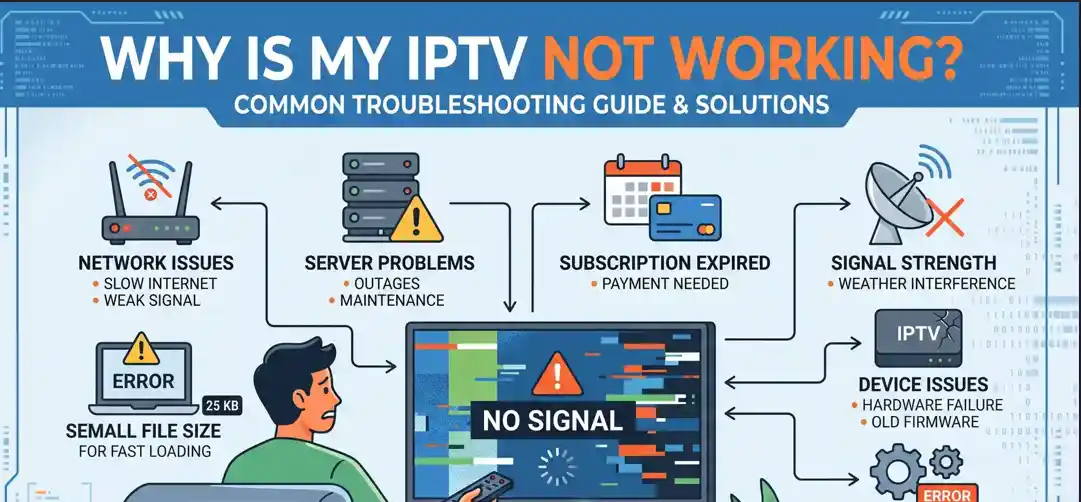
why is my iptv not working? Fix IPTV not working today. Step-by-step fixes for app crashes, decoder mismatches, and connection issues on Firestick, Smart TVs, and Android.
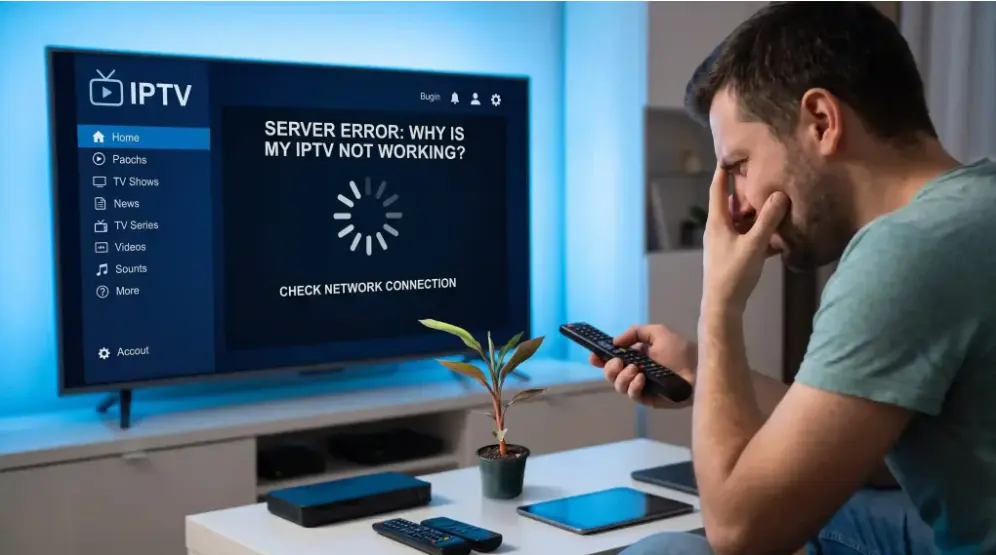
1. Quick Troubleshooting Matrix
| Symptom | Primary Cause | Immediate Fix |
| Constant Buffering | Low bandwidth / Wi-Fi interference | Switch to Ethernet or restart router |
| Black Screen / Audio Only | Video decoder mismatch | Switch player decoder (Hardware ↔ Software) |
| App Crashing / Freezing | Corrupted cache or outdated build | Clear app cache and force restart |
| “Cannot Connect to Server” | ISP block or expired M3U link | Enable a VPN or verify subscription status |
| Single Channel Not Loading | Provider stream down | Test other channels; report broken stream to provider |
2. Common Causes and Step-by-Step Fixes
A. Network Instability and Bandwidth Throttling
Live IPTV streams require stable, low-latency bandwidth, not just high download speeds.
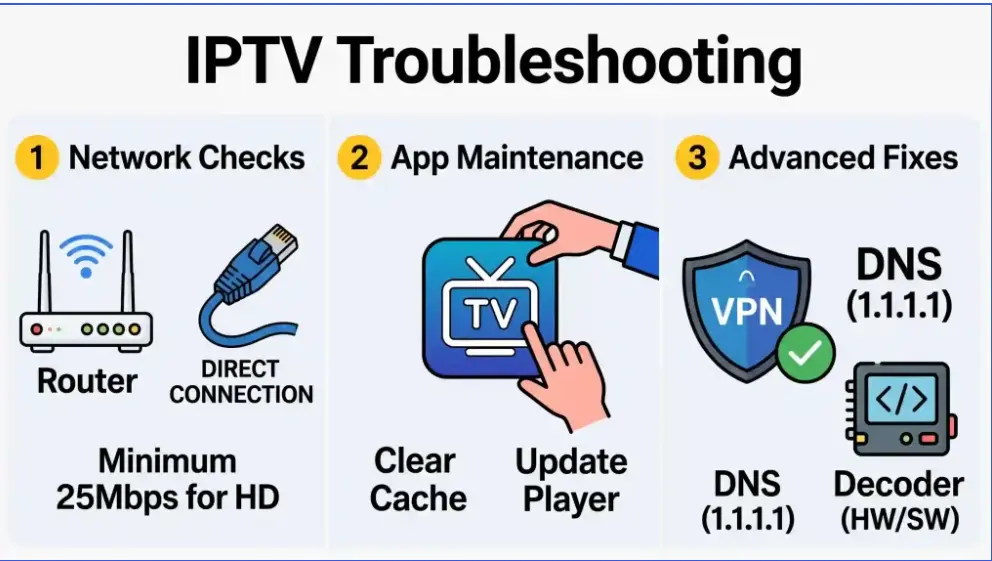
- Minimum Speeds: Standard HD streams require at least 15–25 Mbps, while 4K UHD content demands 50+ Mbps.
- Fix: Connect your streaming device (Smart TV, Firestick, or Android box) directly via an Ethernet cable rather than 2.4 GHz Wi-Fi. Power cycle your modem and router by unplugging them for 60 seconds.
B. ISP Blocks and Deep Packet Inspection (DPI)
Many Internet Service Providers actively monitor and throttle or block IPTV traffic, especially during peak live sporting events.
- Symptoms: The service works normally on mobile data (4G/5G) but fails completely on home Wi-Fi.
- Fix: Use a reputable, paid VPN (Virtual Private Network) with wireguard or openvpn protocols to encrypt your connection and bypass ISP-level DNS filtering. Alternatively, switch your router’s DNS to Google DNS (
8.8.8.8) or Cloudflare (1.1.1.1).
C. Overloaded App Cache and Memory
IPTV players (such as IPTV Smarters, TiviMate, or XCIPTV) continuously store temporary channel data, logos, and EPG guides. Over time, this data becomes fragmented and causes crashes.
- Fix on Fire TV / Android: Go to Settings > Applications > Manage Installed Applications > [Your IPTV App] > Clear Cache.
- Note: Avoid pressing “Clear Data” unless you have your login credentials (M3U URL or Xtream Codes API) saved, as it will reset the app.
D. Decoder Incompatibility (Hardware vs. Software)
If you hear audio but see a black screen, or if high-definition streams stutter severely, the video decoder inside your player app is struggling with the video container format.
- Fix: Open your IPTV app’s settings, locate the Playback / Stream Format menu, and toggle the decoder setting between Hardware (HW) and Software (SW).
E. Expired Credentials or Server Maintenance
IPTV links and Xtream Codes accounts periodically expire or undergo maintenance during server migrations.
- Fix: Verify your playlist URL in a desktop media player like VLC to check if the stream resolves. If the playlist fails on all devices, reach out to your provider for updated server URLs or to confirm your billing status
3. General Best Practices for Reliable Streaming
- Restart Weekly: Power cycle both your streaming box and home gateway once a week to clear RAM.
- Keep Apps Updated: Ensure both your operating system and player applications are running the latest stable firmware. YouTube
- Avoid Free Public Playlists: Free M3U playlists shared on forums suffer heavy congestion and get pulled offline quickly; premium dedicated servers deliver significantly higher uptime.